
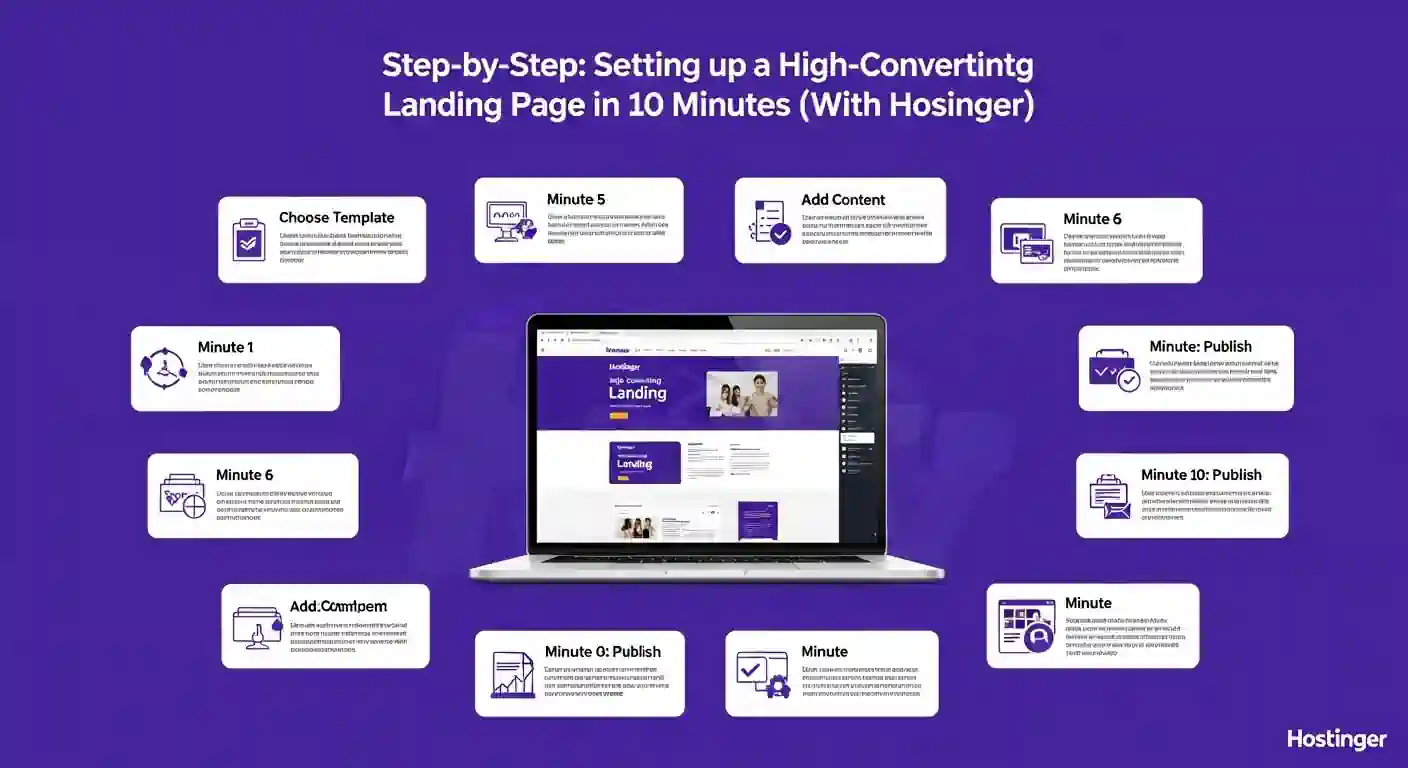
Step-by-Step: Setting up a High-Converting Landing Page in 10 Minutes (With Hostinger)
.jpeg "Earn Passive Income with Wall Art")
Step-by-Step: Setting up a High-Converting Landing Page in 10 Minutes (With Hostinger)

Staring at a blank screen is the enemy of progress.
For years, the choice for entrepreneurs and marketers was a painful one: hire an expensive developer and wait two weeks, or spend countless hours wrestling with complicated page builders, only to end up with a site that looks mediocre and converts poorly.
But what if you could skip all the frustration?
What if you could go from a blank canvas to a live, high-converting landing page in the time it takes to drink your morning coffee?
With the Hostinger AI Website Builder, this isn’t just a possibility—it’s the new reality. In this guide, we aren’t just building a page; we are building a sales machine. We will cover the psychology of conversions, the speed of AI, and the simplicity of drag-and-drop editing, all wrapped up in a tidy 10-minute package.
Here is how to do it, minute by minute.

The Pre-Work: The 2 Minutes That Save You Hours (Minutes 1-2)
Before we open Hostinger or touch a single line of code, we need clarity. A high-converting page has one job: to get the visitor to take one specific action.
If you try to sell an ebook, promote a webinar, and collect newsletter signups all on the same page, you will confuse your visitor. Confused people don’t buy; they leave.
1. Define Your Single Goal
Ask yourself: “What is the one thing I want them to do?”
- Is it to Buy Now? (Product Sales Page)
- Is it to Register? (Webinar/Event Page)
- Is it to Get the Discount? (Lead Magnet Page)
For this tutorial, let’s assume we are selling a digital product: “The Ultimate Productivity Pack.”
2. Gather Your Assets
You don’t need a full brand kit, but you need the essentials to feed the AI. Have these three things ready in a folder on your desktop:
- The Hero Image: A high-quality image of your product or a person benefiting from it.
- The Killer Headline: A benefit-driven sentence. (e.g., *”Reclaim 10 Hours a Week with Done-For-You Systems”*)
- 3 Bullet Points: The key features or benefits.
- A Logo: Even if it’s just a simple text logo, it builds trust.
The Build: Bringing Your Page to Life (Minutes 3-7)
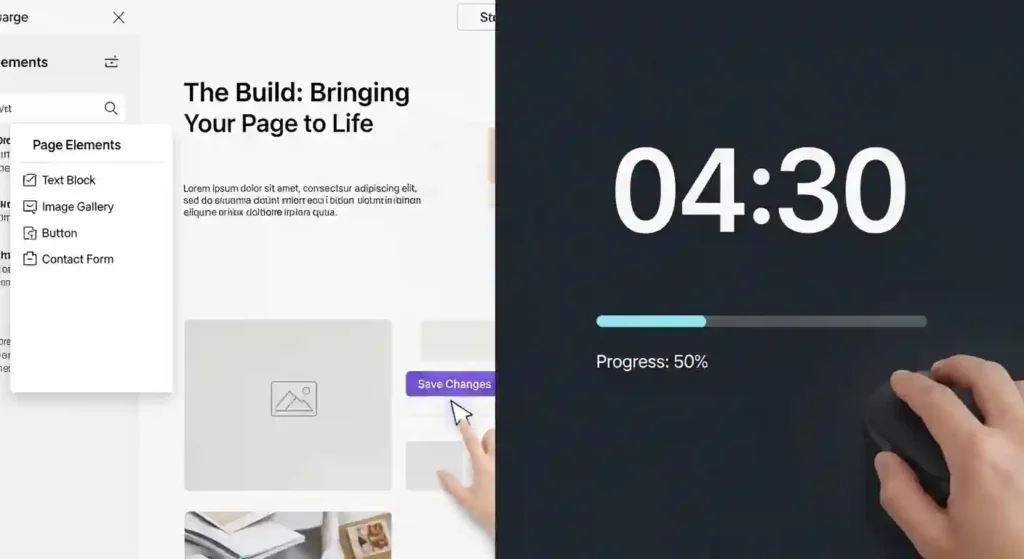
Now that we are prepared, it’s time to let Hostinger’s AI do the heavy lifting. The goal here is speed—getting a professional structure up immediately so we can spend our time on optimization.
Step 1: AI Generation (Minute 3)
Log in to your Hostinger panel and navigate to the AI Website Builder.
- Click “Create New Site.”
- Tell the AI what you are building. Type in: “Landing page selling a digital productivity pack.”
Within seconds, the AI generates a complete layout. It doesn’t just give you a blank template; it populates it with relevant text, stock images, and a structure designed for conversions (Hero, Features, Testimonials, Footer).
- The Pitch: Notice we aren’t starting from scratch. We are starting from “pretty good,” which is the fastest way to get to “perfect.”
Step 2: The Headline Swap (Minute 4)
AI copy is a great starting point, but it lacks your unique voice.
- Click on the AI-generated headline.
- Delete it and paste in your killer headline: *”Reclaim 10 Hours a Week with Done-For-You Systems.”*
- Below it, add a sub-headline that relieves a pain point: *”Stop copying to-do lists by hand. Get the automated templates that 500+ productivity geeks use to streamline their workflow.”*
Step 3: The Visual Upgrade (Minute 5)
Images stop the scroll. Generic stock photos kill trust.
- Click on the placeholder image in the hero section.
- Look for the “Replace Image” or “Upload” option in the left sidebar.
- Drag and drop your own “Hero Image” into the uploader.
- Pro Tip: Hostinger has a built-in asset library, so if you don’t have a custom image yet, you can quickly search for high-converting lifestyle stock photos directly within the builder.
The Conversion Optimization: Turning Looks into Sales (Minutes 8-9)
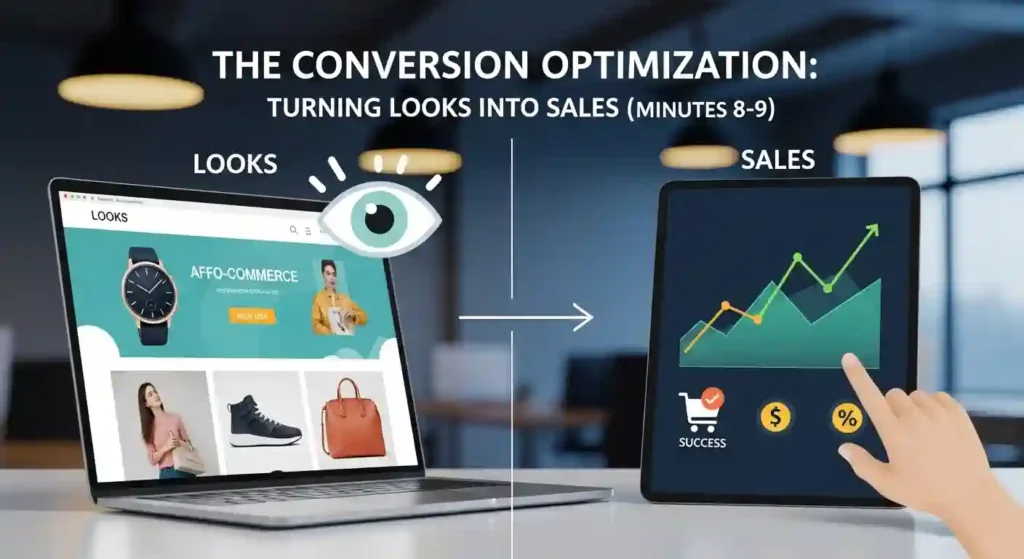
This is where we separate a “website” from a “high-converting landing page.” We are now going to tweak the psychological triggers.
Step 4: The Button (The Call-to-Action)
Your CTA button is the most important element on the page.
- Click on the button to open the styling options.
- The Color: Change the button color to something that contrasts with your background. If your site is blue, use an orange or green button. It needs to pop.
- The Text: Never use “Submit” or “Click Here.” Be specific about the value.
- Bad: Submit
- Good: Get The Productivity Pack Now
- Great: Give Me Back My 10 Hours!
Step 5: Adding Social Proof (Minute 9)
People trust other people more than they trust you.
- Scroll down to the section below your features.
- Look at the left sidebar for the “Add Block” or “Elements” menu.
- Find the Testimonials block. Drag it onto the page, dropping it just above the footer.
- Paste in a quick quote. Even if you are launching, you can use a placeholder or a “what people are saying” beta tester quote.
- While you are here, look for the “Logo Cloud” or “Trust Badges” section. Drag one in and upload logos of publications you’ve been featured in, or secure payment badges (Visa, PayPal, McAfee). This reduces anxiety at the moment of purchase.
Step 6: Removing Distractions
This is the most overlooked step in conversion.
- Look at the header of your page. Does it have a “Home,” “About,” and “Blog” link?
- Delete them. On a dedicated landing page, you don’t want people wandering off.
- Click on the navigation menu and remove any links that don’t directly support the purchase. Ideally, the only link in the header should be the page you are on, or perhaps a “Contact” link. We want the visitor’s only option to be scrolling down and hitting that orange button.
The Launch: Going Live with Confidence (Minute 10)
We are at the finish line. But before we hit publish, we need to ensure the experience is flawless for everyone.
Step 7: The Mobile Check
Over 60% of web traffic is mobile.
- Look at the top of the Hostinger builder interface. You will see icons for Desktop, Tablet, and Mobile. Click the Mobile icon (usually a phone shape).
- The viewport will shrink.
- Check your headline: Is it too long? Does it wrap awkwardly? Adjust the font size specifically for mobile here.
- Check your button: Is it big enough to tap with a thumb? If not, drag the edges to make it wider.
Step 8: Publish
- Satisfied with the mobile view? Click the Publish or Preview button.
- Hostinger will allow you to connect a domain instantly. If you don’t have one ready, you can use their temporary Hostinger domain to share the link immediately.
- Click Publish.
Conclusion
In ten minutes, you haven’t just built a website. You have built a focused, optimized piece of marketing technology designed to turn visitors into buyers.
The old days of waiting for developers or struggling with bloated page builders are over. With the Hostinger AI Website Builder, the power to launch a business idea, a product, or a service is literally at your fingertips.
The only thing left to do is drive traffic to it.
Ready to build your own high-converting page?
[Click here to start with Hostinger today and get a special discount.] xmoneyacademy.com/hosting